LinkedIn Message Templates: Save Time with AI
Whether you're prospecting, recruiting, networking, or job searching, Kanbox AI templates help you write personalized LinkedIn messages in seconds. Dynamic variables, team sharing, and direct inbox integration.
15-day free trial - No credit card required


Why Professionals Choose Kanbox for LinkedIn Messages
The only tool combining AI personalization with reusable templates for all your LinkedIn conversations

"Kanbox templates transformed how our sales team communicates on LinkedIn. We went from 15% to 42% response rate. The AI personalization makes each message feel handcrafted."
How it works
Create and Use Templates in 3 Steps
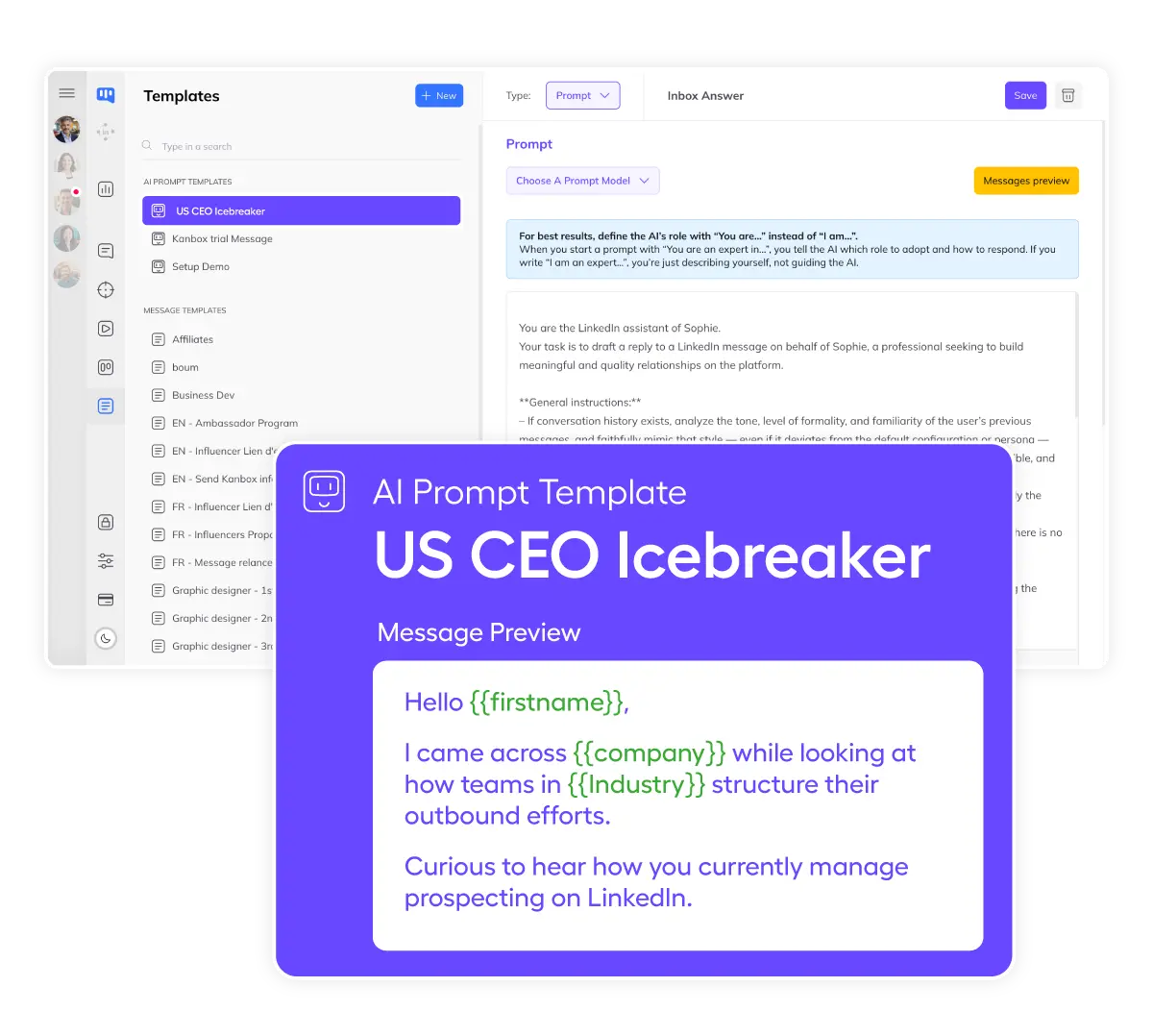
Step 1: Create Your Template
- Write your message.
- Use your best-performing message as a base or let AI suggest one.
- Add variables.
- Insert dynamic fields: {{firstName}}, {{company}}, {{jobTitle}}.
- Choose your audience.
- Tag templates by use case: prospecting, recruitment, networking.
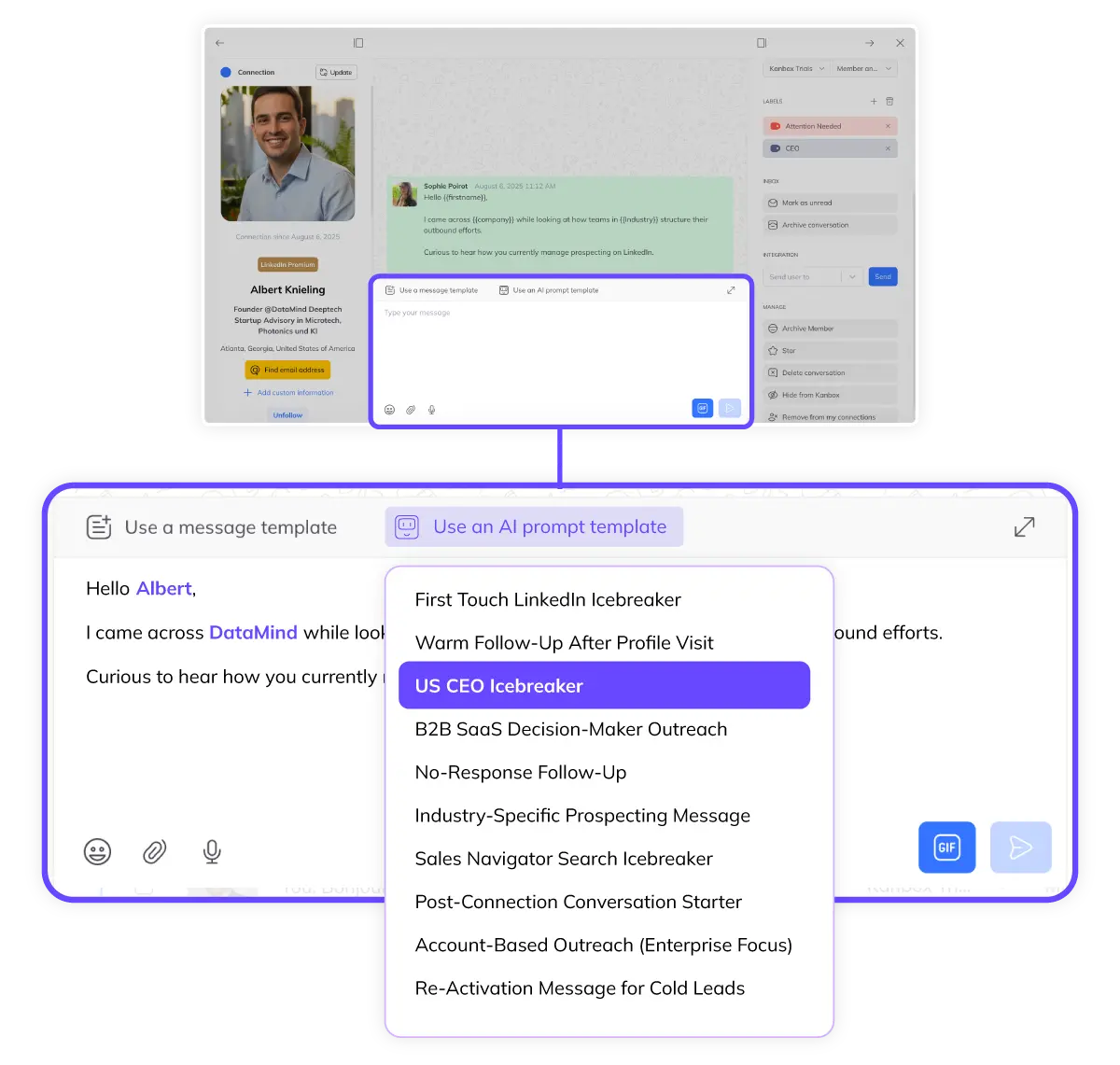
Step 2: Insert in One Click
- One-click insertion.
- Select your template directly from the Kanbox inbox.
- Auto-filled variables.
- Kanbox fills in the recipient's info automatically.
- Review and send.
- Quick check, then send. Or let AI personalize further.
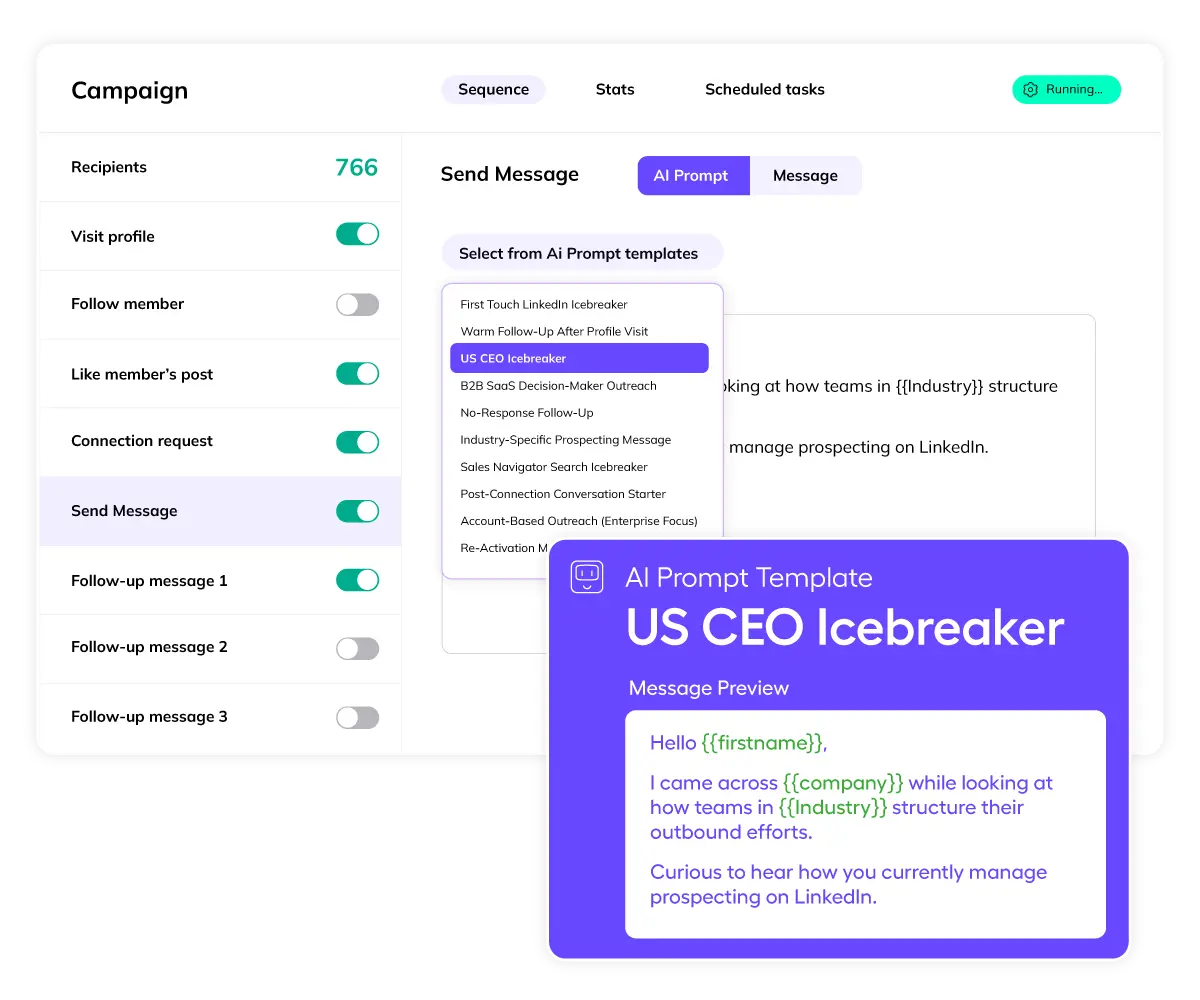
Step 3: Scale with Automation
- Use in sequences.
- Add templates to your automated LinkedIn campaigns.
- AI personalization.
- Each message is unique thanks to AI prompt templates.
- Track and optimize.
- See which templates get the best response rates.
Core Features
Two Powerful Template Systems
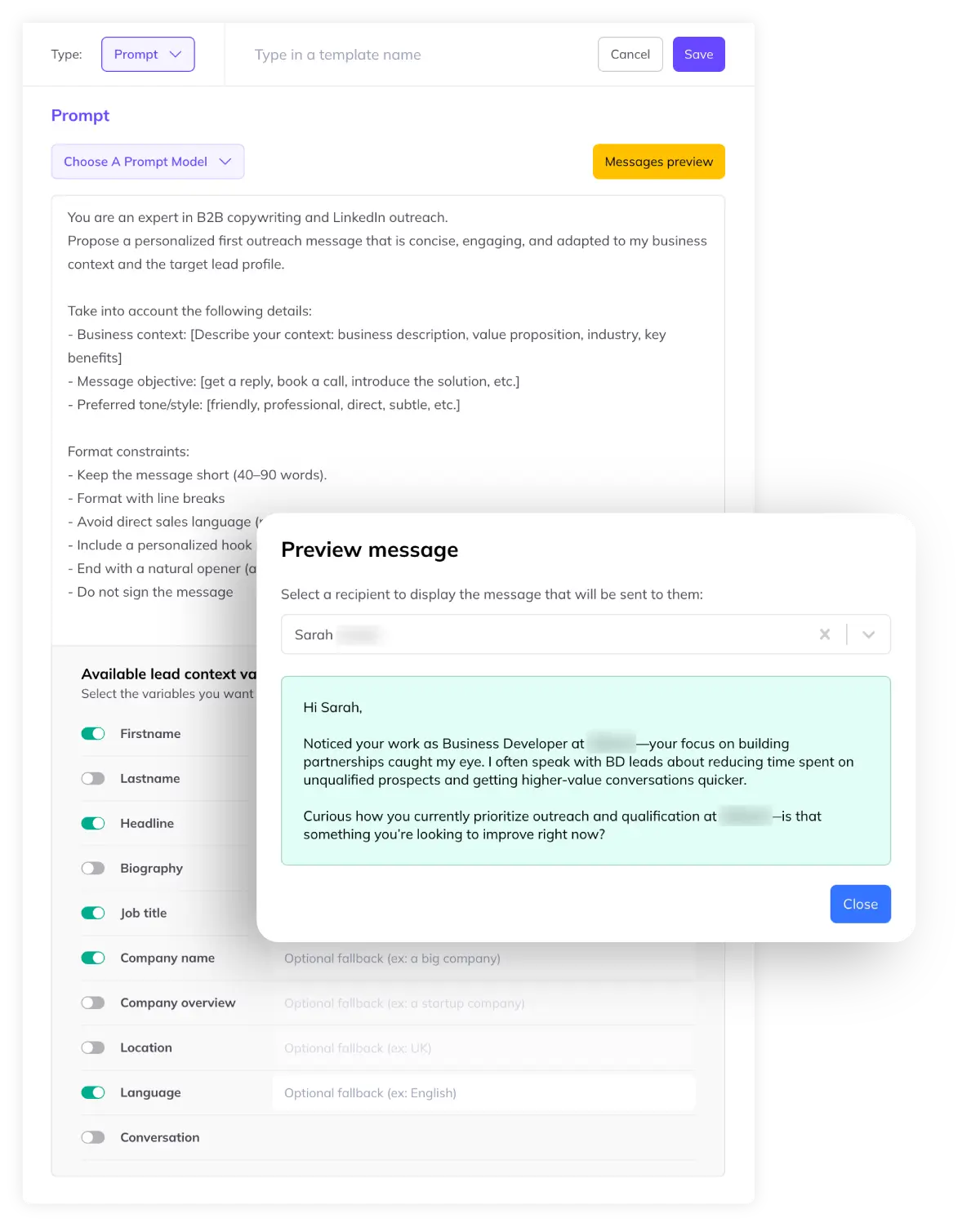
AI Prompt Templates
- AI-generated personalization.
- Write a prompt, and Kanbox AI creates a unique message for each recipient based on their LinkedIn profile.
- Profile analysis.
- The AI reads job title, company, experience, and finds relevant talking points.
- Adapts to any context.
- Sales outreach, recruitment, job applications, partnership requests, investor outreach.
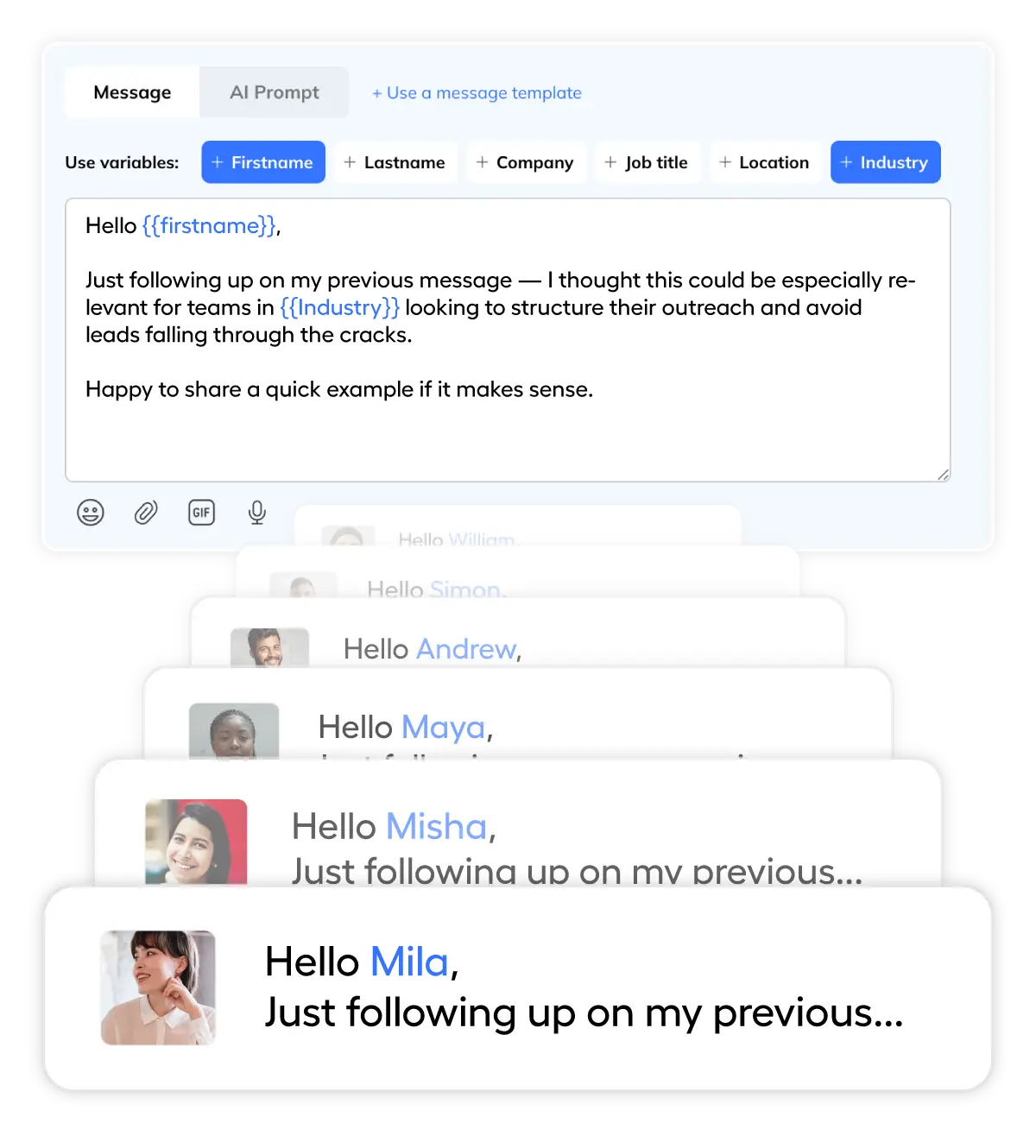
Classic Message Templates
- Reusable templates.
- Save your best messages and reuse them with one click. Perfect for follow-ups and standard replies.
- Dynamic variables.
- Personalize at scale with {{firstName}}, {{company}}, {{jobTitle}} auto-replacement.
- Team sharing.
- Share winning templates across your organization. Ensure consistent messaging quality.
Ready to Write Better LinkedIn Messages?
Try AI templates free for 15 days. No credit card required.
Start FreeTemplates vs Manual Writing
| Feature | Manual Writing | Kanbox |
|---|---|---|
| Time per message | 3-5 minutes | 10 seconds |
| Personalization | Manual research | AI-automated |
| Consistency | Varies by person | Always on-brand |
| Team sharing | ||
| Works with automation | ||
| Track performance | ||
| Messages/day capacity | 20-30 max | 200+ easily |
What Professionals Say About Kanbox Templates
Verified reviews from Kanbox users

UI, Kanban function. Attachments for emails make the process more efficient and structured.
Capterra
Kanbox is a game-changer. Connected to LinkedIn, we can run campaigns, track responses, and manage candidate engagement seamlessly.
Capterra
Clean interface, and the pipeline feature is unlike anything I've used before.
Capterra
Excellent pipeline management and campaigns. Everything is well-structured and streamlined.
Capterra
Kanbox's Kanban-style interface makes organizing leads incredibly easy. Custom pipelines make tracking outreach seamless.
Capterra
Seamless integration with LinkedIn and Sales Navigator. The intuitive inbox makes managing conversations easy and efficient.
Capterra
The best part? The Kanban board and filters make it easy to label and prioritize my leads effectively.
Capterra
Kanban is an excellent tool for anyone who uses LinkedIn for sales. It streamlines collecting, organizing, and interacting with potential clients.
CapterraPricing
Simple, Transparent Pricing
All plans include message templates. AI templates available on Starter and above.
Starter
- Simultaneous Campaign: 1
- Lead Import: 300 /month
- Cloud-based
- Email Finder
- Smart Linkedin Inbox with Tags and Filters
Essential
- Simultaneous Campaign: 3
- Lead Import: 600 /month
- Cloud-based
- Email Finder
- Smart Linkedin Inbox with Tags and Filters
- Team / Multi-account
- Unlimited account managers
Pro
- Simultaneous Campaign: 5
- Lead Import: 75K /month
- Cloud-based
- Email Finder
- Smart Linkedin Inbox with Tags and Filters
- Unlimited AI Prompts and Prompt Templates
- Team / Multi-account
- Unlimited account managers
- Webhooks / API
Agency
- Simultaneous Campaign: Unlimited
- Lead Import: 75K /month
- Cloud-based
- Email Finder
- Smart Linkedin Inbox with Tags and Filters
- Unlimited AI Prompts and Prompt Templates
- Team / Multi-account
- Unlimited account managers
- Webhooks / API
- Unlimited account managers
- Bring your own Proxies
Frequently Asked Questions
1. How to write an effective LinkedIn message for a first contact?
Writing an effective first-contact LinkedIn message requires a personalized approach. Here are the key elements:
Essential components:
- Personalized opening: Mention something specific from their profile (recent post, job change, shared connection)
- Clear value proposition: Explain why you're reaching out in one sentence
- Soft call-to-action: Ask a simple question rather than demanding a meeting
What to avoid:
- Generic greetings like "Dear Sir/Madam"
- Long paragraphs about yourself or your company
- Immediate sales pitches or meeting requests
- Copy-pasted messages that feel impersonal
With Kanbox AI templates, personalization happens automatically. The AI reads each profile and generates relevant talking points.
2. What mistakes should you avoid in a LinkedIn invitation message?
LinkedIn invitation messages have a 300-character limit, making every word count. Here are the most common mistakes:
Critical errors to avoid:
- No personalization: Using the default "I'd like to add you to my network" message
- Too salesy: Pitching your product in the connection request
- Too long: Trying to cram your entire pitch into 300 characters
- Wrong tone: Being too formal or too casual for your audience
- No context: Not explaining why you want to connect
Best practices:
- Keep it under 200 characters for higher acceptance rates
- Mention a shared interest, connection, or relevant detail
- Be genuine and conversational
- Save the pitch for after they accept
3. How to personalize a LinkedIn message to maximize engagement?
Personalization is the #1 factor for LinkedIn message engagement. Here's how to do it effectively:
Levels of personalization:
- Basic: First name, company, job title (minimum required)
- Intermediate: Recent activity, shared connections, industry context
- Advanced: Specific content they posted, career milestones, mutual interests
What AI can personalize automatically:
- References to their current role and company
- Mentions of their industry or expertise
- Context from their LinkedIn headline or summary
- Relevant talking points based on their experience
With Kanbox: AI prompt templates analyze each profile and generate unique talking points automatically. You set the angle, and AI handles the personalization.
4. What are the best LinkedIn message templates by objective?
Different objectives require different message approaches. Here are proven templates for each use case:
For Sales Prospecting:
- Focus on their pain points, not your features
- Ask about their current challenges
- Offer value before asking for a meeting
For Recruitment:
- Lead with the opportunity, not the job description
- Personalize based on their career trajectory
- Be transparent about the role and company
For Job Seekers:
- Research the company and role first
- Connect with hiring managers, not just recruiters
- Show genuine interest in their work
For Networking:
- Find genuine common ground
- Give before you ask
- Be specific about why you want to connect
5. How to automate LinkedIn messages without losing personalization?
The challenge with LinkedIn automation is maintaining authenticity at scale. Here's how Kanbox solves this:
The automation-personalization balance:
- Bad automation: Same generic message to everyone = low response, potential spam flags
- Good automation: Personalized messages generated for each recipient = high response, genuine conversations
How Kanbox AI templates work:
- You write a prompt describing your message angle and tone
- AI reads each recipient's LinkedIn profile
- AI generates a unique message for each person
- Messages are sent through automated sequences
Key safeguards:
- Human review option before sending
- Daily limits to protect your account
- A/B testing to optimize messages
- Easy opt-out for recipients
6. What is the difference between AI Prompt Template and Message Template?
Kanbox offers two complementary template systems. Understanding the difference helps you use each effectively:
AI Prompt Templates:
- What it is: You write a prompt (instructions), AI generates unique messages for each recipient
- How it works: AI reads the recipient's LinkedIn profile and creates personalized content based on your prompt
- Best for: First outreach, cold messages, large campaigns where each message needs to feel unique
Classic Message Templates:
- What it is: Pre-written messages with variable placeholders that get auto-filled
- How it works: You write the exact message, variables like {{firstName}} get replaced automatically
- Best for: Follow-ups, standard replies, team consistency, known working messages
When to use each:
- Use AI prompts for first contacts and cold outreach
- Use classic templates for follow-ups and proven sequences
- Combine both: AI-generated first message, classic template follow-ups
7. What variables can you use in Kanbox templates?
Kanbox supports a rich set of variables to personalize your templates automatically:
Basic contact variables:
{{firstName}}- Recipient's first name{{lastName}}- Recipient's last name{{fullName}}- Complete name
Professional variables:
{{jobTitle}}- Current job title{{company}}- Current company name{{industry}}- Industry sector{{location}}- Geographic location
Fallback values:
Set default values when data is missing:
{{firstName|there}}- Uses "there" if no first name{{company|your company}}- Fallback text
8. Can you share templates with your team?
Yes, Kanbox includes team template sharing on Pro and Agency plans. Here's how it works:
Team sharing features:
- Shared template library: Create templates that everyone on your team can access
- Personal templates: Keep private templates for your own use
- Permission levels: Control who can edit vs. only use templates
- Template categories: Organize by use case (prospecting, follow-up, recruitment)
Benefits for teams:
- Consistent messaging across all team members
- New hires get instant access to proven templates
- A/B test templates and share winning versions
- Managers can review and approve templates
9. What are the best practices for effective LinkedIn messages?
After analyzing millions of LinkedIn messages, here are the proven best practices:
Message length:
- Connection requests: Under 200 characters
- First messages: 50-125 words optimal
- Follow-ups: Shorter is better (under 75 words)
Timing:
- Tuesday-Thursday highest response rates
- 9-11 AM and 1-3 PM local time
- Avoid weekends for B2B outreach
Structure that works:
- Hook: Personalized opening that catches attention
- Context: Why you're reaching out (brief)
- Value: What's in it for them
- CTA: Simple, low-commitment ask
Ready to Transform Your LinkedIn Messaging?
Join thousands of professionals who write better messages in less time.
15 days free · No credit card required · Full access from day one